Media Accessibility
Physics Classroom has leveraged a wide array of multimedia in its goal of bringing Physics and Chemistry to life. Images, Videos, Audio, are all tools we leverage. However, for those with special needs (such as the blind or deaf), the information being portrayed in these can be out of reach without tools to bridge that gap. We are working hard to build those bridges with innovative features.
Please know that as we describe these features, there is still much work to be done - we've been around for almost 30 years, and that amount of content is not rebuilt overnight.
Images
Physics Classroom has a couple key systems in place:
- Short and verbose Descriptions: All images contain a short description, as well as a verbose description. Verbose descriptions go into tremendous detail about what information the image is trying to portray. These were generated first by AI, but as we recreate content or rebuild, we are going through those generated descriptions and fixing them up. All AI verbose descriptions will come with a warning that they are AI generated and may contain errors. Once verbose mode is turned on, images verbose descriptions will be in an aria-described linked to the image, and can be accessed however your screen reader software normally accesses aria-described by content.
- Captions and Equations: If there are equations, text, or other elements within an image, these have been re-written and placed into the Figure Caption of the image. This allows us to also leverage our Dynamic and Accessible Equation systems.
- Tactile Version: Although this feature will take longer to build out, we have systems in place to add a Tactile version of images, which exist as black and white dotted images. These images can at minimum be printed on swell paper, and possibly also integrate with braille displays.
Enabling Image Accessibility
Images, by default, will contain the shorter alternative text, and render any Image Captions in the Figure Captions below them. However, users must enable the Verbose description mode and Tactile Modes in order to leverage them.
To enable the Verbose Mode, in the Screen Reader Navigation (the hidden navigation you go to when you hit tab on the load of a screen), there is a section for accessibility. In it there is a toggle button to enable or disable verbose mode. You can also click this link to go to the section.
To enable Tactile Mode, there will be a button in the same Screen Reader Navigation area, it is currently disabled until we finish the systems and generate some tactile images.
Sample Accessible Image
Below is a sample of an accessible image. Make sure you have enabled the verbose mode to get the verbose description. Caption is found below this image to allow you to navigate the equations that are displayed in the image.
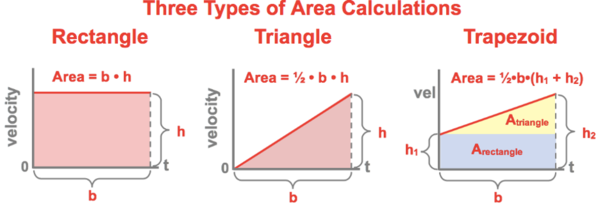
- Equation A - Rectangle: \(\text{Area} = \descriptive{b}{b, base} \times \descriptive{h}{h, height}\)
- Equation B - Triangle: \(\text{Area} = \frac{1}{2} \times \descriptive{b}{b, base} \times \descriptive{h}{h, height}\)
- Equation C - Trapezoid: \(\text{Area} = \frac{1}{2} \times \descriptive{b}{b, base} \times (\descriptive{h}{h, height}_1 + \descriptive{h}{h, height}_2)\)
Audio
We have two main areas of audio help in Physics Classroom. Audio Problem Guides, as well as our general Audio Player.
Audio Help Transcription
Audio guided solutions have been a big part of our CalcPad problem sets. While migrating this content, we ran the audio through a transcriber. All audio from these Problem Helps have a transcript below that you can access. This can help both those who want to follow along, or those who maybe cannot hear and can read the text.
On Page Audio Player
We have partnered with Trinity Audio which scans pages that the player is on and automatically converts it to audio. It also translates into multiple languages. The player is found currently on the Tutorial pages, and some of our Help pages for our activities. We may expand usage in the future. This audio player can also be controlled with the keyboard in accessibility mode by holding down the T key for 3 seconds, after which you can pause and resume with the K key.
Video
We have a large number of Physics Videos on YouTube. We have plans to add subscripts / transcripts for the videos to both help those who cannot see, and those who cannot hear, however this may take some time to re-render these. Thank you for your patience.